Showing posts with label RFC. Show all posts

8/25/2017

How to create RFC destination in SAP ?

Go to SM59 transaction :


Click on create icon in the above screen, which leads to below screen


Specify RFC Destination name and description and connection
Type in the above screen


Please note respective connection type to be selected from dropdown based on the connection required. Usually 3 is for ABAP system. (Pls find screenshot below)


In the below screen, please select load balancing radio button
based on your system setup (i.e if there is load balancing configured
for your system, specify it as yes otherwise no)

Please provide Target host details like hostname or ip address
and system number as below:


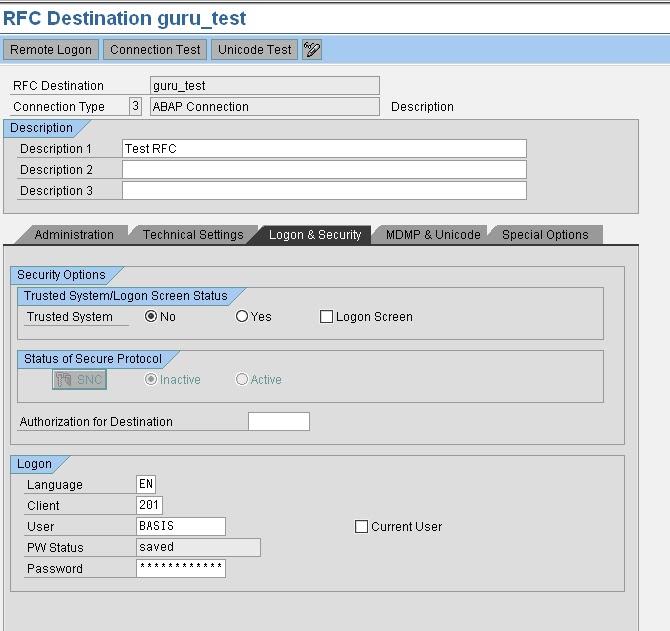
As shown below, Proceed to Logon & security tab and provide following
details: Select trusted system as no, in case you would like to connect
to a system with a user id and password.

If you don’t want to get authenticated by credentials specify the system
as trusted system which won’t prompt to enter user id/pwd credentials
in the below screen.

Please provide Language details like EN (for English), Client details,
User id and password for the system you would like to create a connection.

Please leave default values in other tabs (i.e MDMP & Unicode,
Special options, Administration) and then click on Save to complete the RFC creation.
How to Test RFC connection ?

If it functioning well it should show output similar to below screen :


If this is fine, come back to earlier screen and execute Unicode test by clicking
the button. Output similar to below screen, should be displayed if connection is
OK


Also you need to perform authorization test to make sure user id / password
credentials provided are correct.
Please navigate as below and perform the test :


Navigate to Utilities -> Test -> Authorisation test and click the same to execute.


If the RFC configuration is fine, screen shot similar above will appear.
Otherwise an error will be displayed based on which you need to
troubleshoot to fix the issue.

How to delete an RFC ?

Goto SM59 and select the RFC that is to be deleted as shown below :
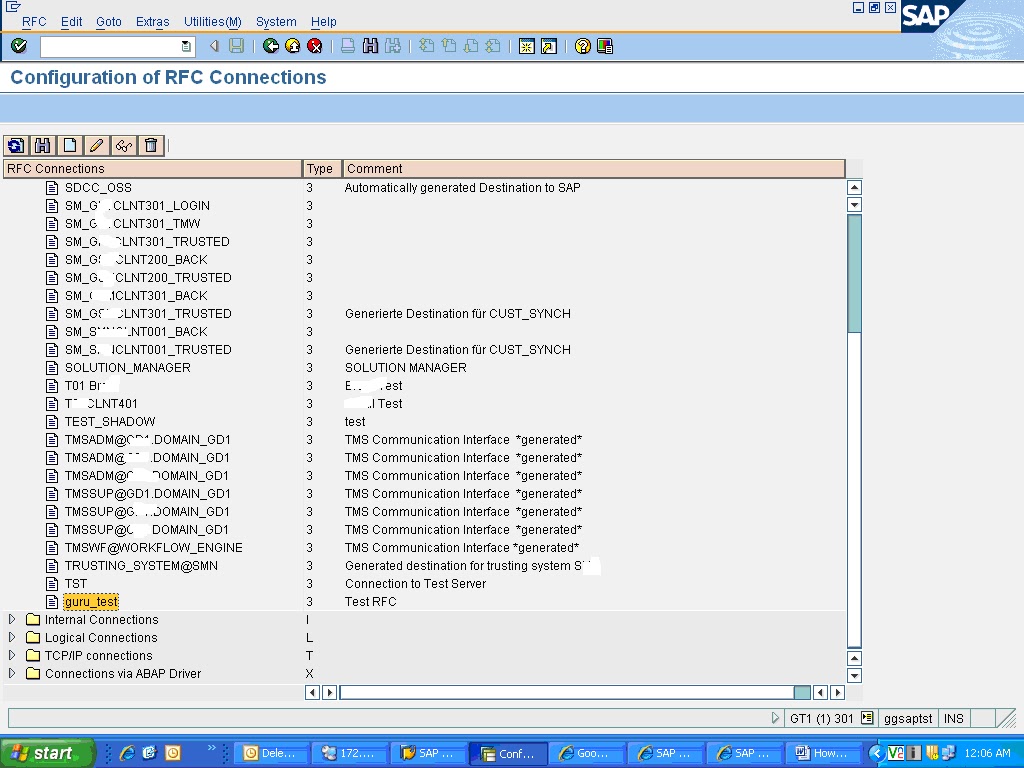

And click on delete icon


Click yes to confirm deletion, which deletes the RFC.

Click on Connection test tab to check the connection for the RFC

SAP Types of RFC communication

There are mainly 4 types of RFC communication in SAP. They are:
  • Synchronous RFC
  • Asynchronous RFC
  • Transactional RFC
  • Queued RFC
Synchronous RFC (sRFC) : In this type of RFC communication, the calling program waits until he requested processing step on the remote system has ended and then continues to work locally.locally.
In other words, both the systems involved must be available at the time the call is made.

Asynchronous RFC (aRFC) : In this type of RFC communication, the calling program gives the request to the remote system and immediately continues to work locally. The requested processing step is executed on the remote system in isolation.
If the remote system cannot be reached at the time of the call, the asynchronous calls of the RFC client are lost

Transactional RFC (tRFC) : This type of RFC communication is similar to asynchronous RFC but by allocating a transaction id(TID) it guarantees that if a request is sent several times because of network problems it is processed only once. Unlike asynchronous RFC, in Transactional RFC the remote system does not have to be available at the moment the RFC client program start the call. The data is held in the source system until the target system is available.
The report program RSARFCSE is called in the background at regular intervals and tries to place he unsuccessful requests, identified by their transaction id again.

Queued RFC (qRFC) : This RFC communication is an extension to the transactional RFC. In this method, all the requests are queued up(inbound queue and outbound queue) and are processed in a sequence only if it is certain that all preceding calls are processed correctly. This method guarantees that all the requests are processed in the sequence in which they are received.
This type of RFCs will be used in SCM (APO) systems for CIF queues etc where requests have to be processed in an order.


Related Links :

How to create an RFC connection in SAP

10/23/2012

SAP Remote Client Copy Transaction Code:SCC9

The client copy held between two different databases or two different servers (R/3 systems) is known as Remote Client copy. Remote Client copy requires RFC Connections.

Create RFCUSER with SAP_ALL and SAP_NEW profiles on source system (DR1)
Run su01 and create new user RFCUSER and copy from ddic

Make sure the user type is SYSTEM.
SAP-Remote-Client-Copy-User-Display
Lock all users on source
• Send system message to all users SM02
• Wait for one hour and kill any remaining users
• Run SU10 to mass user lock

Stop all background jobs
• Display all background jobs using sm37
• Run BTCTRANS1 to de schedule all jobs
• Run BTCTRANS2 to re schedule all jobs

Make sure enough space is available for TableSpaces in target
Create RFC Connection from target to source (TCODE SM59)
Connection type should be R3 connection
Connecting two applications running on two different servers to enable the data communication is called as RFC connection. Using RFC connection the communication obtained between source and target systems with the help of gateway work process which enables data communication between them.

RFC connections will be created using SM59 transaction code
Types of RFC connections
Connecting application server with same database
Connecting with R/2 system database
Connecting with R/3 system database connecting type 3 stands for creating a connection between R/3 to R/3 technology servers.

SAP R/3 to SAP R/3
SAP R/3 to SAP BIW (vice versa)
SAP R/3 to SAP CRM (vice versa)
SAP R/3 to SAP SRM (vice versa)

If SAP R/3 to SAP R/3 connection obtained the data communication held between those two systems as per its technical and configuration 

Steps in creation of RFC destination
• Go to SM59 in target client
Display-and-maintain-RFC-destinations
• Create
• Give RFC destination Name (SIDCLNT)
• Connection type (3) for R/3 connection
Type-of-entry-in-RFCDES
• Choose Description and Enter
• Now additional tabs will be opened
• Give CI host name of Source client and Instance number in the tab
“Technical Settings”: Go to “Logon/Security” tab, mention source client number, give user information using which source RFC to be logged on to target then save and Test connection.

User info in RFC
In RFC administration, screen logon details required to be given for the source system of RFC to be logged in to the target system RFC. This user type should be system or service which ever part of target system database. Once RFC is created source to target system the data extraction can be done from target system to source system
SAP-RFC-Destination-DR1 

Test
SAP-RFC-Destination-Information
RFC- Connection-Test
Go back and run SM59 and you will see the newly created connection.
SAP-Display-and-maintain-RFC-destinations
Run Remote Client Copy (TCODE SCC9)
Remote client copy will be done using SCC9 transaction code using the same steps as done in local client copy.
Run-Remote-Client-Copy
SAP-Client-Copy 


SAP-Schedule-Client-Copy-in-Background
SAP-verification-Remote-Client-Copy
SAP Background Information
Only difference is for the source client, instead of giving the client number of a local client you will need to provide the RFC connection for the system containing the source client, which is defined in step 1. 


Popular Posts