Showing posts with label SM59. Show all posts

8/25/2017

How to create RFC destination in SAP ?

Go to SM59 transaction :


Click on create icon in the above screen, which leads to below screen


Specify RFC Destination name and description and connection
Type in the above screen


Please note respective connection type to be selected from dropdown based on the connection required. Usually 3 is for ABAP system. (Pls find screenshot below)


In the below screen, please select load balancing radio button
based on your system setup (i.e if there is load balancing configured
for your system, specify it as yes otherwise no)

Please provide Target host details like hostname or ip address
and system number as below:


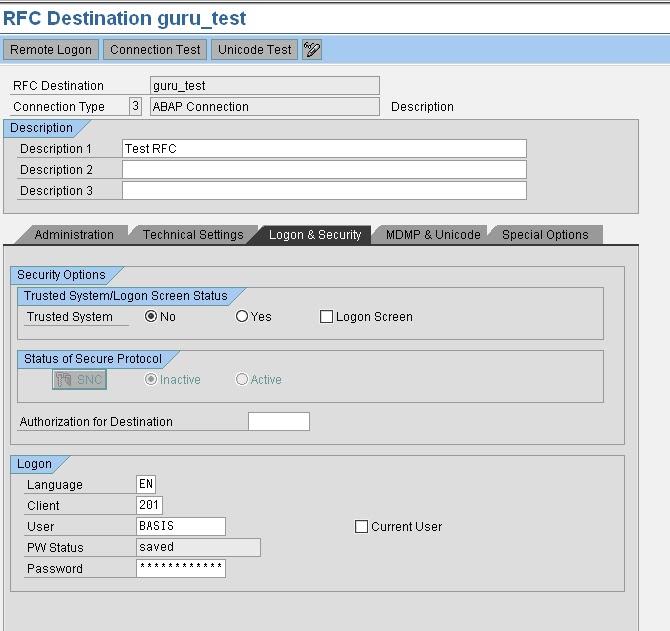
As shown below, Proceed to Logon & security tab and provide following
details: Select trusted system as no, in case you would like to connect
to a system with a user id and password.

If you don’t want to get authenticated by credentials specify the system
as trusted system which won’t prompt to enter user id/pwd credentials
in the below screen.

Please provide Language details like EN (for English), Client details,
User id and password for the system you would like to create a connection.

Please leave default values in other tabs (i.e MDMP & Unicode,
Special options, Administration) and then click on Save to complete the RFC creation.
How to Test RFC connection ?

If it functioning well it should show output similar to below screen :


If this is fine, come back to earlier screen and execute Unicode test by clicking
the button. Output similar to below screen, should be displayed if connection is
OK


Also you need to perform authorization test to make sure user id / password
credentials provided are correct.
Please navigate as below and perform the test :


Navigate to Utilities -> Test -> Authorisation test and click the same to execute.


If the RFC configuration is fine, screen shot similar above will appear.
Otherwise an error will be displayed based on which you need to
troubleshoot to fix the issue.

How to delete an RFC ?

Goto SM59 and select the RFC that is to be deleted as shown below :
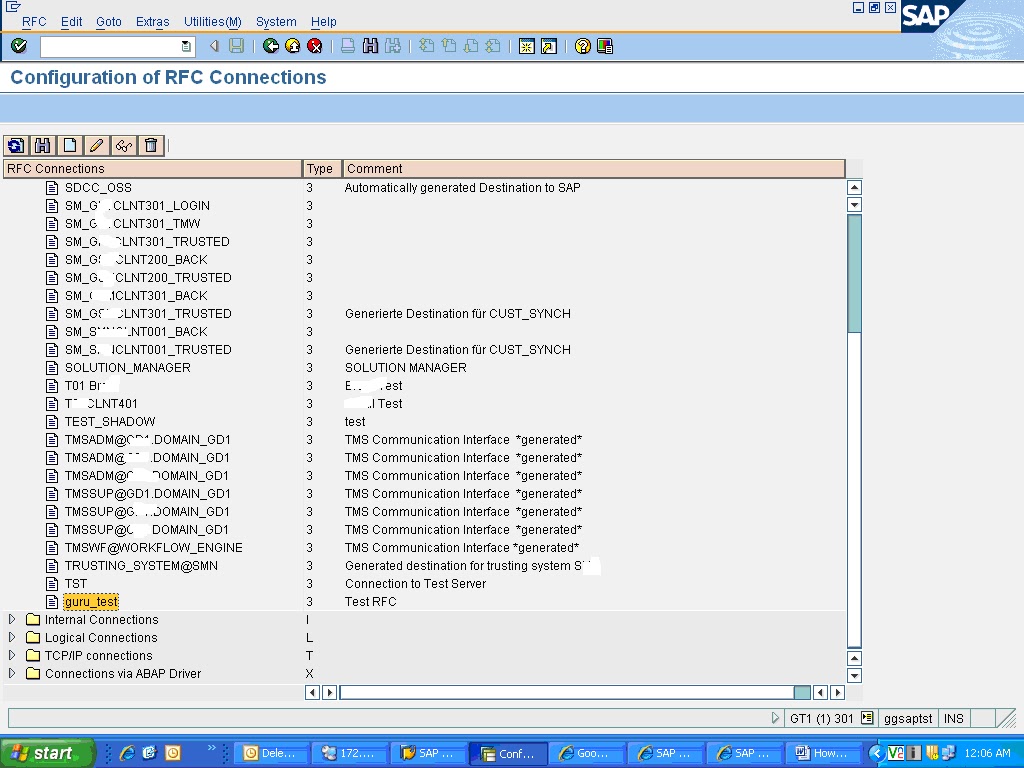

And click on delete icon


Click yes to confirm deletion, which deletes the RFC.

Click on Connection test tab to check the connection for the RFC

How to configure Early Watch Alert report in SAP Solution manager

To configure Early watch alert some specific settings to be done at managing system Solution manager system  and satellite system( or managed system – for which EWA report to be generated)
Following are the steps to configure EWA in a satellite system :

1) Check whether latest versions of ST-A, ST-PI, ST-A/PI packages are
installed in the managed/satellite system
(This check can be done going to system->status -> Component information display in any sap screen)

2) If they are installed, run RTCCTOOL report from SE38 transaction code of satellite system.
   Check the output of the report. If there are some errors or warnings in the output of the report, please take corrective actions and run the report again and ensure there are no errors

3) Setup RFC connection between your satellite system and the solution manager system
An RFC connection can be made between 2 systems using Transaction code SM59

4) Setup RFC connection between your solution manager and the SAP service market place

5) Assign the solution monitoring roles to the users

6) Setup your satellite system in a solution landscape of the solution manager(SMSY)

7) Make sure SLD is configured and working fine for satellite system (using RZ70 and SLDCHECK transactions)

8) Activation of SDCCN in satellite system (Goto SDCCN transaction. Then click on Utilities -> Activate)  then confirm for SDCC_OSS destination creation

9) In satellite system, goto SDCCN transaction and navigate to Goto -> Settings -> Task specific.
In the resulted screen, select RFC destination and provide the solution manager RFC from the satellite system and set solution manager RFC as the master system.

10) Addition of satellite system in solution manager system in SDCCN :
Goto SMSY transaction in solman system and then navigate to Environment -> Solution Manager Operations -> Administration SDCCN to add the new service data control centre to the solution manager.
Click on add system button to add the new SDCC to the solution manager. When prompted, please select the respective system and client from the resulting screen and confirm.

11) Early watch service session activation for satellite system:
In the solution manager system, execute transaction code solution_manager  and navigate to operations -> Earlywatch Alert and press create button. This prompts you to confirm the date and time to run the report. Please provide the details and confirm to trigger the generation of the report

12) Login to satellite system, goto transaction code SDCCN and press create button which displays a screen to select a task to be executed. Select request session data task  and click continue. You will be prompted to enter the schedule time to run the report. Click now to execute it immediately. After that you can see an early watch session running in SDCCN.

13) After completion of this session run successfully, an Earlywatch Alert will be generated and this can be viewed in Solution_manager of Solution manager system.

8/23/2017

How to Register a program on SAP Gateway

RFC connection test in SM59 might give error similar to this


Logon Connection Error

Error Details Error when opening an RFC connection

Error Details ERROR: program not registered

Error Details LOCATION: SAP-Gateway on host / sapgw

Error Details DETAIL: TP not registered

Error Details COMPONENT: SAP-Gateway

Error Details COUNTER: 16793

Error Details MODULE: gwr3cpic.c

Error Details LINE: 1694

Error Details RETURN CODE: 679

Error Details SUBRC: 0

Error Details RELEASE: 700

Error Details TIME: Mon APR 17 13:08:02 2009

Error Details VERSION: 2

———————————————————————————————————

The program in the above error should be registered in the gateway for this connection test to complete successfully. The server program rfcexec is responsible for its registration on the gateway.

To register the program login into the OS level as sudo su - adm and execute the following command.

rfcexec –g -a -x 

rfcexec is the server program name, the can be obtained from SM59, it is case sensitive and should match with the entry in SM59. Theand can be obtained from the transaction SMGW. When this command is executed it goes to a hanging loop.

The connection will fail once this command is terminated or the user executing this command logs off

To avoid this, instead of using the above mentioned command an entry should be made in the file saprfc.ini

To do this, execute the following command

sudo su - adm

rfcexec –D

is the RFC destination name in SM59

So now we are done with registering the server program, but how do we check it is registered, once a server program is registered it is displayed in the Logged on clients in SMGW.

In transaction SMGW choose GOTO-> Logged on clients. There should be an entry for the server program in the screen that is displayed with system type Registered_TP (which indicates that the program is registered)

There can be many reasons due to which we might get this error saying server program is not registered, once such instance which I faced was where in the TREX server, a new RFC destination was defined, the TREX server creates a new program id each time this RFC destination is defined. This program id was not changed in TCP/IP connection is SM59 which was the reason why the destination was failing

How to configure IDOCS from SAP R/3 TO SAP (XI) PI

THE STEPS TO BE CARRIED OUT TO ENABLE A SAP R/3 SYSTEM SEND IDOCS TO SAP EXCHANGE INFRASTRUCTURE.


First - Maintain the Sender R/3 System:

  • SM59 : Create a RFC destination to XI
  • WE21 : Create a TRFC Port ->Specify the RFC Destination Created
  • BD54 : Create a Logical System for the Idoc Receiver
  • WE20 : Create Partner Profile ->Maintain Outbound and the Inbound Parameters

Second - Log on to XI System:

  • SM59 : RFC Destination for Sender System
  • IDX1 : Create the port to get Idoc Metadata from Sender System ( The Port Name must match the port name in the idoc header - Usually in format SAP. eg. SAPID1 [Optional Step. Not mandatory]
  • IDX2 : Maintain the Idoc Metadata. This is needed only by XI, and not by other SAP systems. IDX2 is needed because XI needs to construct IDoc-XML from the IDoc. No other SAP system needs to do that.

To Enable Acknowledgement:


  • SXMB_ADM ->Integration Engine Configuration ->Specific Configuration ->Add New entry -> Select parameters as:
    • Category: RUNTIME
    • Parameters: ACK_SYSTEM_FAILURE
    • Current Value: 1

GO TO SLD:

  • Create Technical System: Choose WEB AS ABAP if the system is R/3 -> Define SAP SID, Installation Number and Database Host Name a Maintain message Server Details according to Sender System -> Maintain Client Details of Sender System ->Select a Installed Product for Sender System

  • Create Business System: Choose WEB AS ABAP if the system is R/3 -> Choose the Technical System and the client Created Before -> Choose the Installed Product -> Set:
    • Business System Role: Application System
    • Related Integration Server: Integration Server

Idoc Tunneling in XI


To prevent performance consuming XMLization and de-XMLization IDOCs are tunneled through SAP XI IDOC adapter meaning no XMLiziation is executed before the IDOC is passed onto the pipeline. Note the message is converted to UTF-8 codepage.

Start transaction SXMB_ADMIN on SAP XI.

Select option Configuration->Integration Engine Configuration and add two parameter EXTERNAL_MAPPER in the category IDOC.

Configure the parameter according to the conditions below:

If Message Code and Message Function are specified in the partner profile:
..ReceiverPort...

If only the Message Code is specified in the partner profile:
..ReceiverPort..

If only Message Function is specified in the partner profile:
..ReceiverPort...

Integration Builder


 Integration Directory:
  •  Add Business System:  Adapter Specific Identifiers -> 'Logical System' identical to the 'Logical System Name' in the SLD Business System  
  •  IDoc Receiver Communication Channel: port the same as XI System IDX1

10/23/2012

SAP Remote Client Copy Transaction Code:SCC9

The client copy held between two different databases or two different servers (R/3 systems) is known as Remote Client copy. Remote Client copy requires RFC Connections.

Create RFCUSER with SAP_ALL and SAP_NEW profiles on source system (DR1)
Run su01 and create new user RFCUSER and copy from ddic

Make sure the user type is SYSTEM.
SAP-Remote-Client-Copy-User-Display
Lock all users on source
• Send system message to all users SM02
• Wait for one hour and kill any remaining users
• Run SU10 to mass user lock

Stop all background jobs
• Display all background jobs using sm37
• Run BTCTRANS1 to de schedule all jobs
• Run BTCTRANS2 to re schedule all jobs

Make sure enough space is available for TableSpaces in target
Create RFC Connection from target to source (TCODE SM59)
Connection type should be R3 connection
Connecting two applications running on two different servers to enable the data communication is called as RFC connection. Using RFC connection the communication obtained between source and target systems with the help of gateway work process which enables data communication between them.

RFC connections will be created using SM59 transaction code
Types of RFC connections
Connecting application server with same database
Connecting with R/2 system database
Connecting with R/3 system database connecting type 3 stands for creating a connection between R/3 to R/3 technology servers.

SAP R/3 to SAP R/3
SAP R/3 to SAP BIW (vice versa)
SAP R/3 to SAP CRM (vice versa)
SAP R/3 to SAP SRM (vice versa)

If SAP R/3 to SAP R/3 connection obtained the data communication held between those two systems as per its technical and configuration 

Steps in creation of RFC destination
• Go to SM59 in target client
Display-and-maintain-RFC-destinations
• Create
• Give RFC destination Name (SIDCLNT)
• Connection type (3) for R/3 connection
Type-of-entry-in-RFCDES
• Choose Description and Enter
• Now additional tabs will be opened
• Give CI host name of Source client and Instance number in the tab
“Technical Settings”: Go to “Logon/Security” tab, mention source client number, give user information using which source RFC to be logged on to target then save and Test connection.

User info in RFC
In RFC administration, screen logon details required to be given for the source system of RFC to be logged in to the target system RFC. This user type should be system or service which ever part of target system database. Once RFC is created source to target system the data extraction can be done from target system to source system
SAP-RFC-Destination-DR1 

Test
SAP-RFC-Destination-Information
RFC- Connection-Test
Go back and run SM59 and you will see the newly created connection.
SAP-Display-and-maintain-RFC-destinations
Run Remote Client Copy (TCODE SCC9)
Remote client copy will be done using SCC9 transaction code using the same steps as done in local client copy.
Run-Remote-Client-Copy
SAP-Client-Copy 


SAP-Schedule-Client-Copy-in-Background
SAP-verification-Remote-Client-Copy
SAP Background Information
Only difference is for the source client, instead of giving the client number of a local client you will need to provide the RFC connection for the system containing the source client, which is defined in step 1. 


Popular Posts