Go to SM59 transaction :

Click on create icon in the above screen, which leads to below screen

Specify RFC Destination name and description and connection
Type in the above screen
Type in the above screen

Please note respective connection type to be selected from dropdown based on the connection required. Usually 3 is for ABAP system. (Pls find screenshot below)

In the below screen, please select load balancing radio button
based on your system setup (i.e if there is load balancing configured
for your system, specify it as yes otherwise no)
based on your system setup (i.e if there is load balancing configured
for your system, specify it as yes otherwise no)
Please provide Target host details like hostname or ip address
and system number as below:
and system number as below:

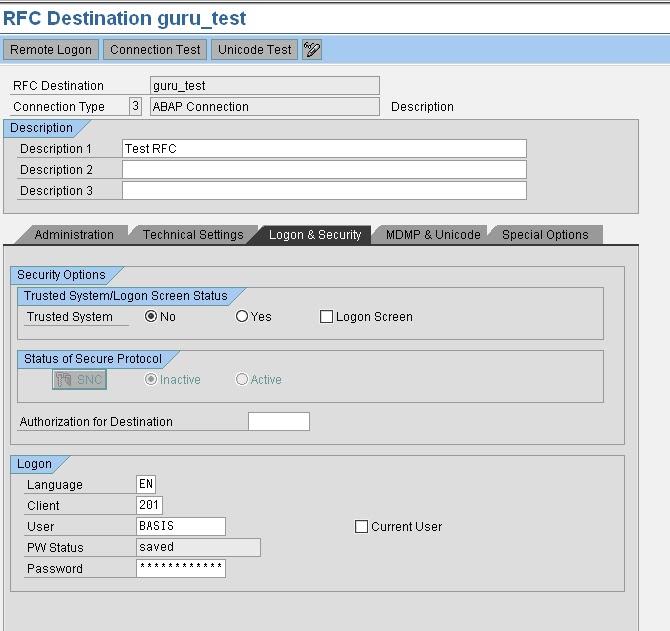
As shown below, Proceed to Logon & security tab and provide following
details: Select trusted system as no, in case you would like to connect
to a system with a user id and password.
details: Select trusted system as no, in case you would like to connect
to a system with a user id and password.
If you don’t want to get authenticated by credentials specify the system
as trusted system which won’t prompt to enter user id/pwd credentials
in the below screen.
as trusted system which won’t prompt to enter user id/pwd credentials
in the below screen.
Please provide Language details like EN (for English), Client details,
User id and password for the system you would like to create a connection.
User id and password for the system you would like to create a connection.

Please leave default values in other tabs (i.e MDMP & Unicode,
Special options, Administration) and then click on Save to complete the RFC creation.
How to Test RFC connection ?
If it functioning well it should show output similar to below screen :

If this is fine, come back to earlier screen and execute Unicode test by clicking
the button. Output similar to below screen, should be displayed if connection is
OK
the button. Output similar to below screen, should be displayed if connection is
OK

Also you need to perform authorization test to make sure user id / password
credentials provided are correct.
Please navigate as below and perform the test :
credentials provided are correct.
Please navigate as below and perform the test :

Navigate to Utilities -> Test -> Authorisation test and click the same to execute.

If the RFC configuration is fine, screen shot similar above will appear.
Otherwise an error will be displayed based on which you need to
troubleshoot to fix the issue.
Otherwise an error will be displayed based on which you need to
troubleshoot to fix the issue.
How to delete an RFC ?
Goto SM59 and select the RFC that is to be deleted as shown below :
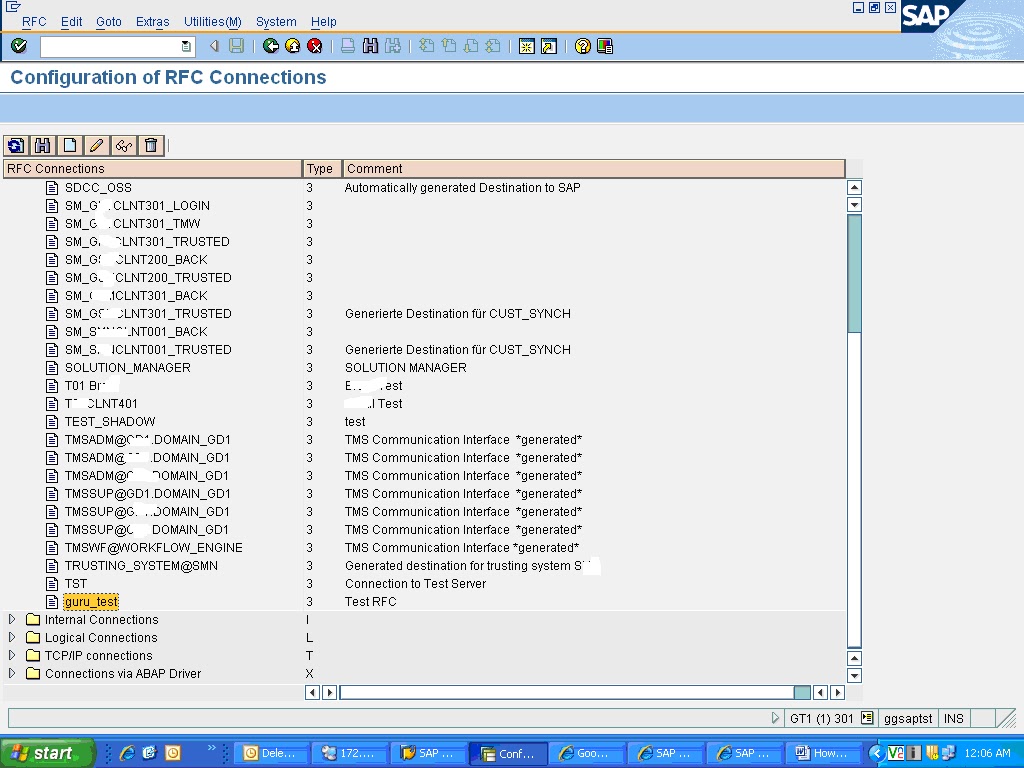
And click on delete icon

Click yes to confirm deletion, which deletes the RFC.
Click on Connection test tab to check the connection for the RFC


