Showing posts with label SAP remote copy. Show all posts

9/08/2017

Oracle how to truncate table from remote database

When you try to truncate a table on a remote database, you will get the following error: 

ORA-02021: DDL operations are not allowed on a remote database. 
You have a database link to the remote database so you can see objects there and execute them (e.g. procedures, functions, packages, triggers, etc). The solution is to create the following procedure on the remote database, then execute it from the local one.


CREATE OR REPLACE PROCEDURE Trunc_RMT_Table(p_table_name VARCHAR2) AS

   v_sql_error_code PLS_INTEGER;
   v_sql_error_message VARCHAR2(512);

BEGIN
   EXECUTE IMMEDIATE 'TRUNCATE TABLE ' || p_table_name;
EXCEPTION
   WHEN OTHERS THEN
      v_sql_error_code := SQLCODE;
      v_sql_error_message := SQLERRM(v_sql_error_code);
      DBMS_OUTPUT.ENABLE(5000);
      DBMS_OUTPUT.PUT_LINE('OTHER ERROR');
      DBMS_OUTPUT.PUT_LINE(v_sql_error_message);
END Truncate_Remote_Table;
/
To execute the procedure, use the following from the local database:
BEGIN
   Trunc_RMT_Table@db_link(remote_table_name);
END;
/

8/27/2017

How to open the client in SAP system?

Often in business scenarios, there will be requirements which cannot be transported and which have to be modified directly in respective tables and other repository objects. To perform these operations client to be opened.


Goto transaction SCC4. This lists clients’ overview as below:


How to open the client in SAP system


From the above screen, we can make out what are the existing clients in the 
SAP system, their names and the date they are last modified.

Double click on the client to be opened. It displays similar screen as below
with the complete client details like last changed date, last changed by, client
role and associated logical system of the client


How to open the client in SAP system

In the above screen, we can see the highlighted option that no changes allowed
and no changes to the repository and cross-client customizing objects. These 2
settings mean that client is NOT opened.

To open the client we should set the client settings as shown below for a client:

How to open the client in SAP system


In addition to the above 2 settings, in SE06, System change option should be
set to “modifiable” as shown below:

Go to transaction SE06:


How to open the client in SAP system

Click on System change option as in the below screen

How to open the client in SAP system


In the above screen, set the Global setting as “modifiable” to make sure client
is opened.

In case you would like to restrict changes to a client, please set this Global
setting as non-modifiable so that no changes can be done.

Please note that the above setting of system change can be done through
SE03 transaction as well.

What are the various client settings and their significance?

Changes and transports for Client specific objects :

1) Changes without automatic recording: Changes will be done without
recording in a change  request

2) Automatic recording of changes: Changes will be done and  request will
get generated & changes will be captured in that

3) No changes allowed: No changes will be allowed

4) Changes w/o automatic recording no transports allowed: This flag
means customizing changes will be permitted but changes are not automatically recorded in the change request.

Cross –Client object changes :

1) No changes to cross-client object changes
2) No changes to repository objects
3) No changes to cross-client and repository objects
4) Changes to cross-client and repository objects.

8/23/2017

SAP R/3 Application server installation on Linux

In this article, I will give you step by step for installation of application server system SAP R / 3 using the Linux OS. Why use Linux? Instead better use Windows? There are some things that a consideration to me why using Linux include:

  1. Database Instance that will be used is Oracle with a platform AIX (IBM's proprietary UNIX). Between AIXand Linux, UNIX machines are equally so compatibility will be more awake than using Windows.
  2. Linux is free and open source. By nature, I was much easier to perform tuning and search for references
  3.  on the Internet.
  4. Communication between Linux and AIX will use NFS, while Windows and AIX will use SAMBA.
  5. Linux machine is more stable, reliable, and most importantly the virus-immune.
  6. Linux is also less expensive in terms of maintenance, hardware requirements, compared to using
  7.  Windows (must have a license) and AIX (in terms of licensing and hardware).
  8. Selection of Linux distributions that will be used freely. I prefer the distro that can use the concept of LVM (Logical Volume Management) so I can make a logical volume space maintenance easier. I will try to explain using Redhat machine. I personally have tried to use SuSE as well. The main difference between them is the problem of the default file system used. Redhat uses ext3, while SuSE using reiserfs.

Excellence ext3 and reiserfs is the ability to manage the logical volume size online.So we can easily increase the size of logical volumes without having to unmount the logical volume.We start, yes ...
1. OS InstallationWhen the OS installation, prepare a sufficient partition for the installation of SAP. The table on the following attachment (Disk) The following will give an explanation setting partitions using LVM.
2. Installing the Central InstanceSince we will use an existing Database Instance on AIX 64 bit machine, then we have to install the Central Instance. Installing the Central Instance package in Linux is to get the executable files from the SAP kernel for Linux.Set environment needed to run sapinst among others:LD_LIBRARY_PATH = / sapmnt / [SID] / exeSAPINST_JRE_HOME = / opt / [location of java runtime environment]DISPLAY = [IP_Address of Windows Client]: 0.0umask = 22
To test, run the xclock command on the console. If an analog clock image, it means that environment is set correctly. If not appear, review the value of each environment variable you.

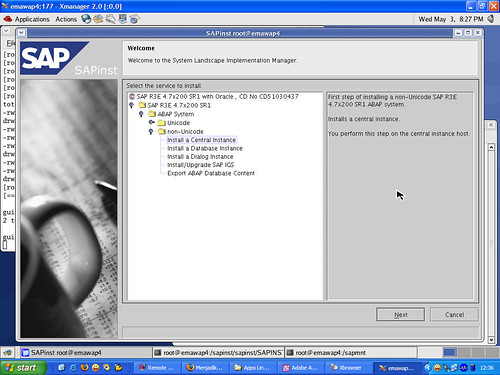
Go to the directory sapinst. Sapinst Run command on the console.

Choose Install Central Instance.

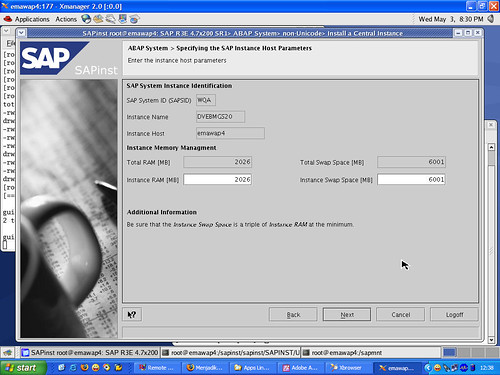
Fill in the information to the SAP System ID (SAPSID) and Instance Number.Customize with existing information on the Database Instance on AIX.

Fill in the information database ID (DBSID) and Database Host.

Let the information by default. This we do because this server will only be used asapplication servers.

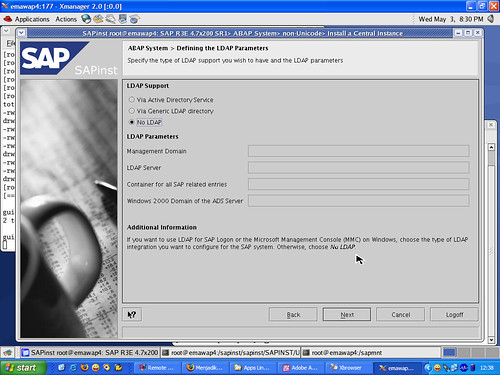
Choose No if you do not use LDAP LDAP facilities on your network.

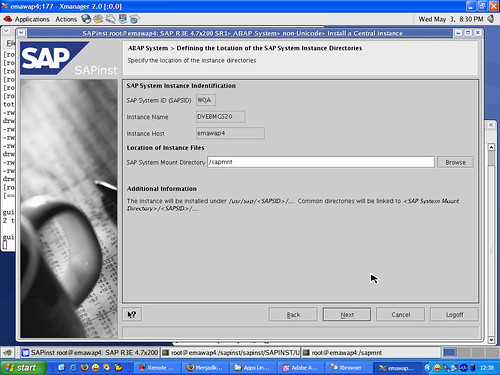
Make sure that this directory is exist.

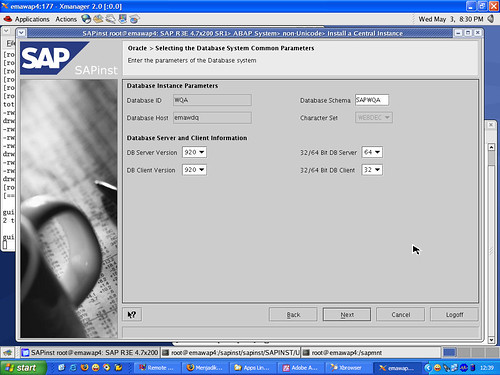
Make sure the correct information Database Schema. And do not forget the type ofdatabase server is running on AIX is 64 bits.

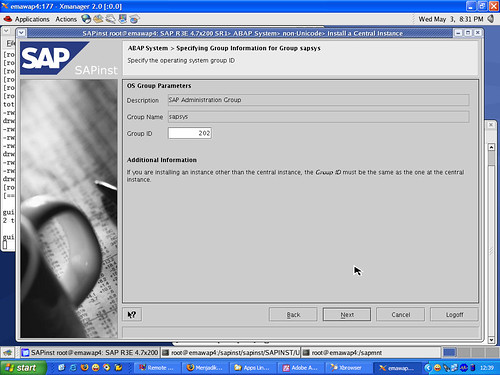
Information about the group sapsys. Noteworthy is the Group ID must match the Group ID on the AIX machine (as a database server).

Information about the group dba. Noteworthy is the Group ID must match the Group IDon the AIX machine (as a database server).

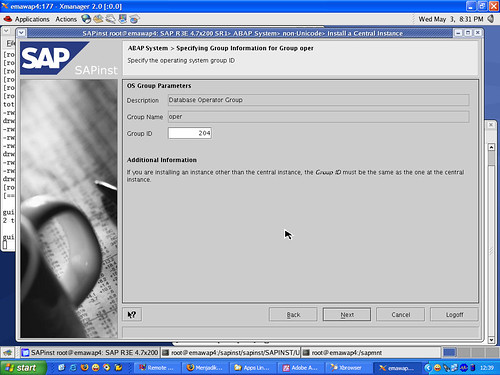
Information about the group shift gears. Noteworthy is the Group ID must match the Group ID on the AIX machine (as a database server).

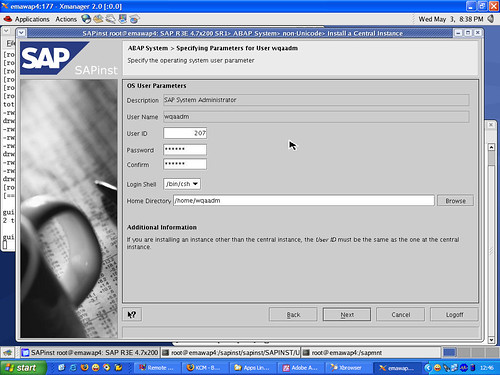
Information about the user [sid] adm. Must be considered is the User ID andpassword must be the same as your User ID and password on AIX machine.

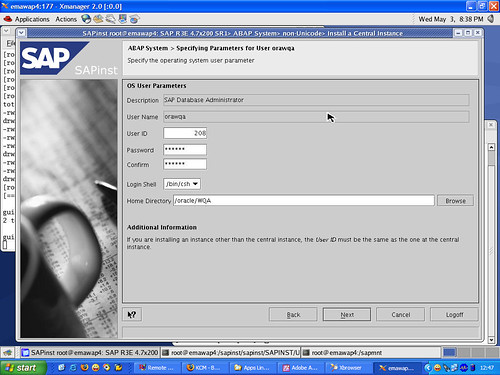
Information about the user ora [sid]. Must be considered is the User ID and passwordmust be the same as your User ID and password on AIX machines.

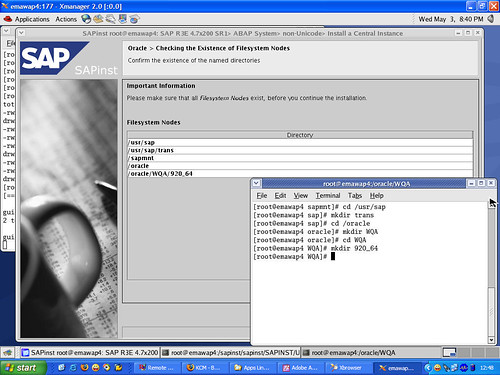
Note the directory listing above. These directories must exist. If not exist, create itnow!. The directory must exist is / usr / sap, / usr / sap / trans, / sapmnt, / oracle, /oracle / [SID] / 920_64.

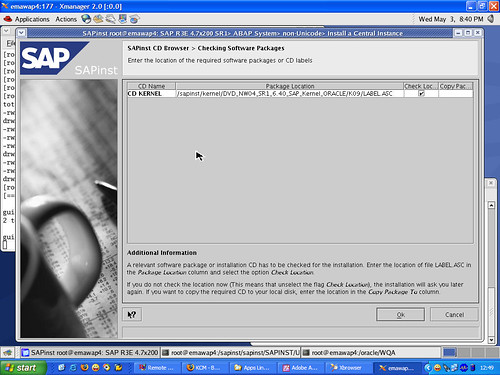
You must indicate the location of the SAP Kernel for Linux is available. You should be ready.

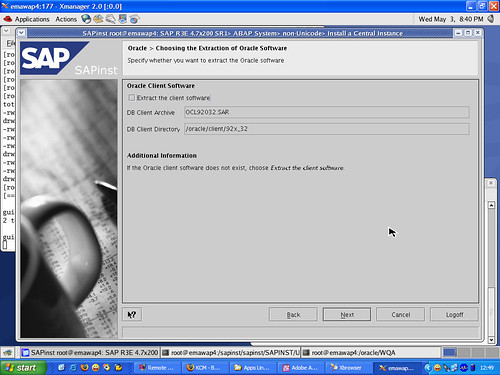
Information extraction of Oracle Client. Remove the check mark. We will not installOracle Client now.

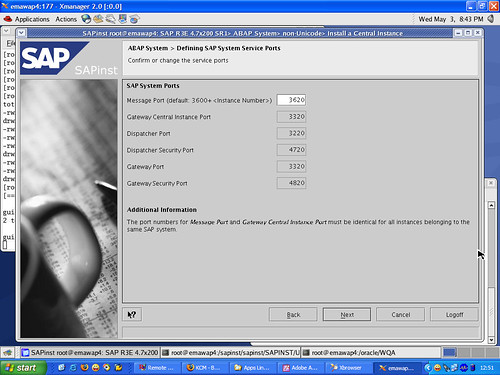
Information on ports used by SAP applications. The following ports should not beused by other applications, which is 36 [system number], 33 [system number], 32[system number], 47 [system number], and 48 [system number]. Please edit the file /etc / services.

Information listener name and port used by the listener. Make sure the port is not usedby other applications.

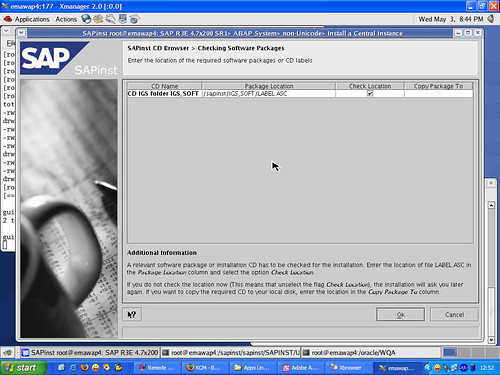
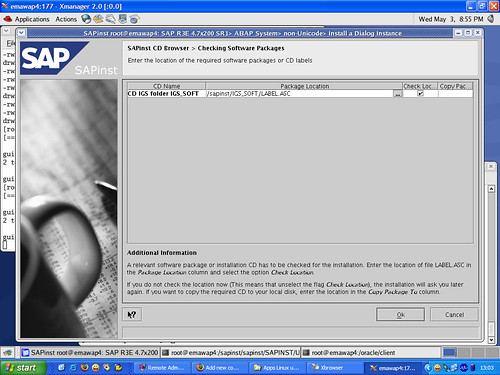
Show location IGS_SOFT.

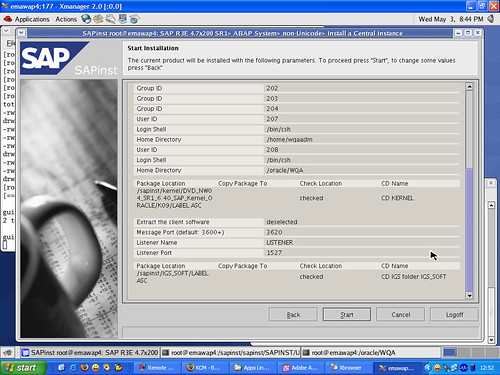
Summary information on the Central Instance installation. Check back and you stillcan click the back button if there is not yet appropriate.

Installing the central instance is running.

Congratulations!! Installing the central instance successfully. We're already in half way.Please break before ... enjoy hot coffee and fried bananas you ...:)
3. Installing Dialog Instance
Set environment needed to run sapinst among others:
LD_LIBRARY_PATH = / sapmnt / [SID] / exeSAPINST_JRE_HOME = / opt / [location of java runtime environment]DISPLAY = [IP_Address of Windows Client]: 0.0umask = 22
To test, run the xclock command on the console. If an analog clock image, it means that environment is set correctly. If not appear, review the value of each environment variable you.Make sure the machine Linux and AIX machines know each other. Perform the addition of the IP Address and hostname Linux on AIX machines and vice versa.
From the AIX machine via NFS, shared directory / sapmnt / [SID] / global and /sapmnt / [SID] / profile. From the Linux machine, mount the directory with the samemount point.

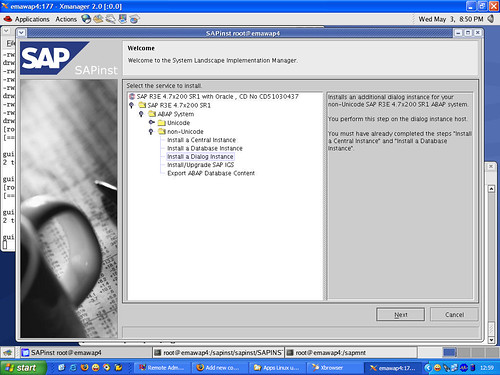
Screen installation election. Select Non-Unicode_Install Dialog Instance.
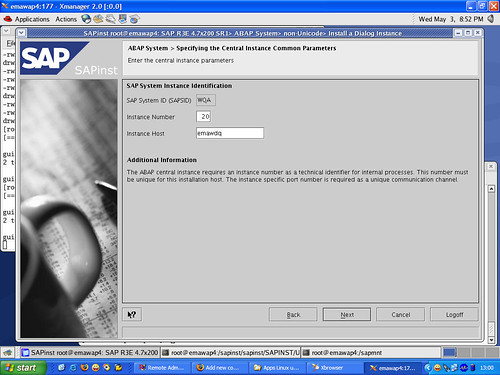
Information about the Central Instance. Remember! instance number and instanceinformation are hosted on the AIX machine.

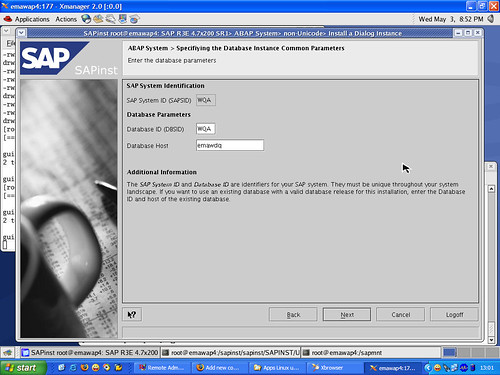
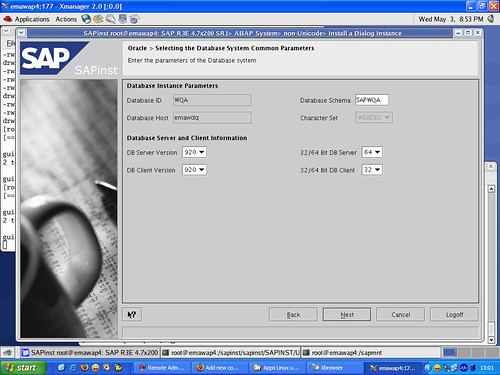
Information Database ID (DBSID) and Database Host.

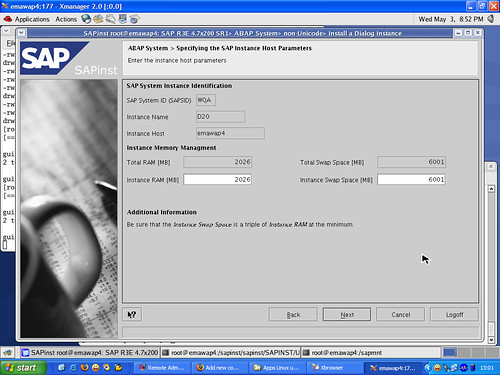
Information hosted instance of parameters. Leave the default.

Choose No if you do not use LDAP LDAP on the network.

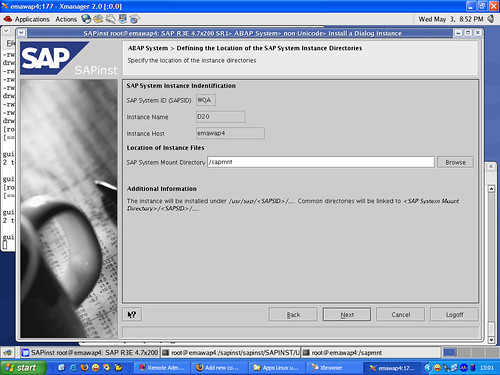
Location SAP Mount Directory is on / sapmnt. Make sure this directory exists.

Note the type of information Database Schema and Database servers. Do not forgetthat the database server that we use is 64 bits.

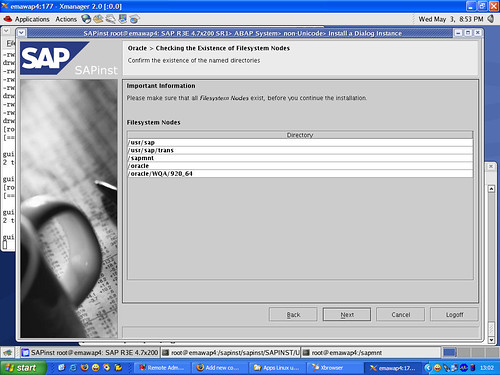
Note the directory listing above. These directories must exist. If not exist, create itnow!. The directory must exist is / usr / sap, / usr / sap / trans, / sapmnt, / oracle, /oracle / [SID] / 920_64.

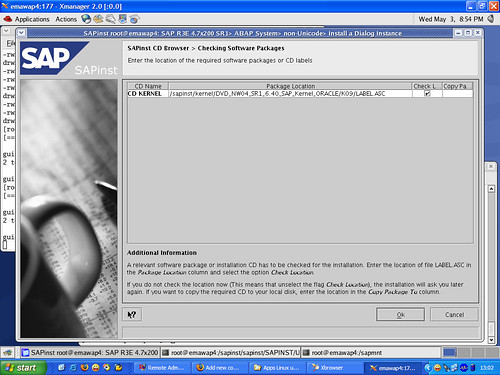
You must indicate the location of the SAP Kernel for Linux is available. You should be ready.

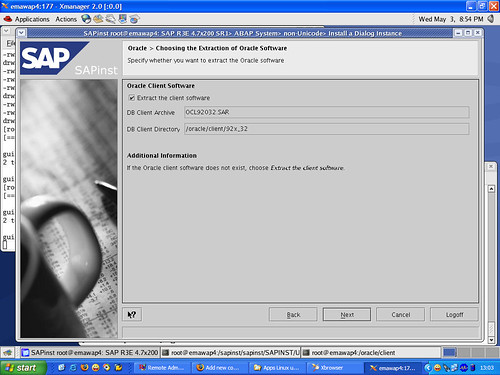
Now is the time for us to install Oracle Client. Tick ​​the option extract oracle client.

Information used ports in the SAP. Should have been prepared at the time ofinstallation of the Central Instance.

Setting name of the listener and the listener port name.

Location IGS_SOFT.

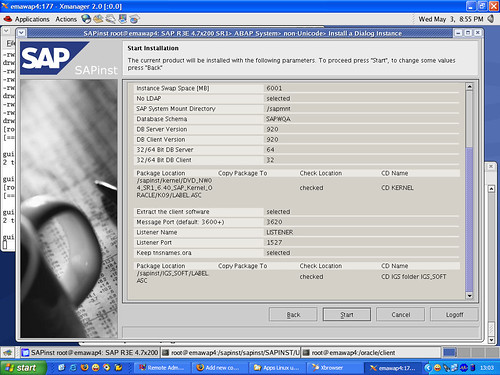
Installation Summary Dialog Instance.
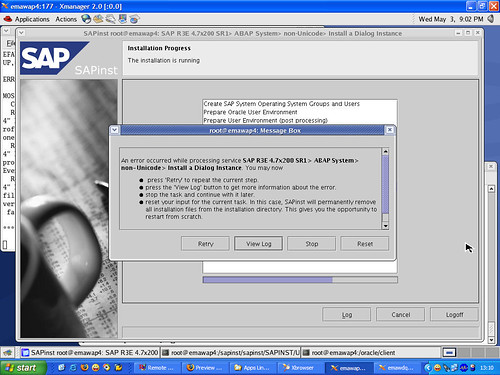
Installing Dialog Instance is running.

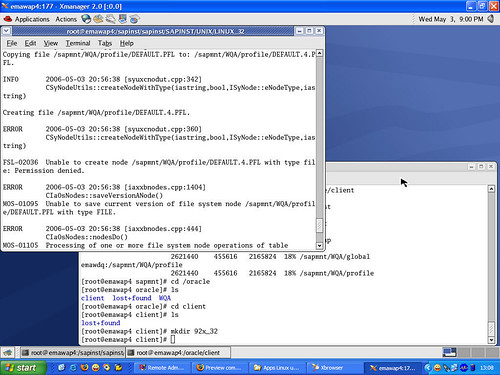
Error will be out due to lack of permissions on the directory NFS / sapmnt / [SID] /profile.

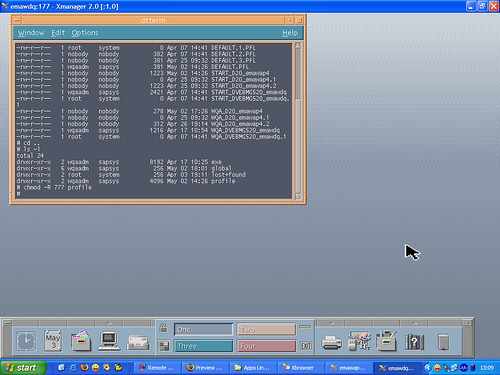
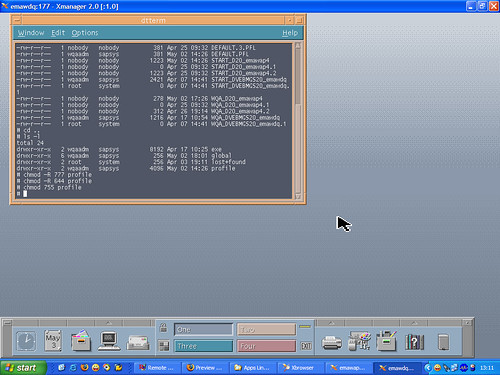
From the AIX machine, change the first permissions recursively to 777, the command# chmod-R / sapmnt / [SID] / profile. Continue the installation until it met the error again.

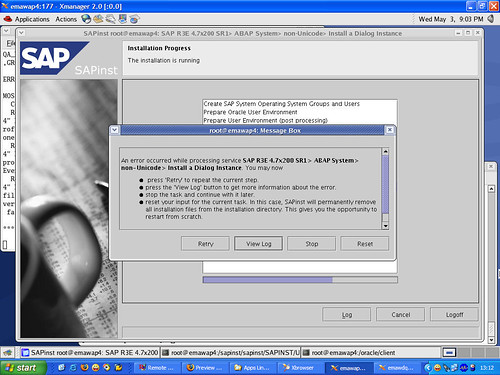
Errors occur because the permissions on the directory NFS / sapmnt / [SID] / profileon AIX machines.

Restore permissions to its original position. Use the following commands in succession: # chmod-R 644 profile, # chmod 755 profile.

This error is a bug from SAP. Please edit the file keybd.xml. Search keyword"ERROR" and change it to OK. Save, then run back to the old installation.

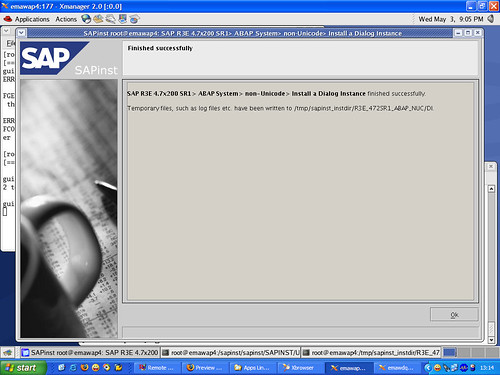
Congratulations! Dialog Instance installation has been completed.
4. Next run the dialog instance. Previous sure central instance and database server is running on the AIX machine.
Now we already have a Linux application servers are cheap, reliable and stable.There is more to be tuning, later we went on again.

Popular Posts